
Manta M8P V2 + EBB SB2209 + Cartographer CAN V3 = CANBus
/ 5 min read
Table of contents
Wat
I’m one of those people with enough free time — well, I definitely used to have enough; turning bolts and heat-setting brass inserts during calls was genuinely a joy, I’ll admit — plus the stubbornness and the motivation to build my own 3D printer.
It’s a thankless hobby: after two years of limping along, the SD card decided to die, and the printer simply stopped turning on.
I’ve finally worked through all the stages of grief and accepted that the whole thing has to be rebuilt and reconfigured from scratch. And that’s exactly what this guide is about.
Overview
Here’s my setup: the heart of the printer is a Manta M8P V2 board, the brains are an Orange Pi CM4, the eyes — if you can call them that — are a Cartographer, and for talking to the printer’s head there’s CANBus and an EBB SB2209.
And I got fucking tired of hunting all of this down and downloading it all over again. So let’s take it from the top.
Orange Pi Compute Module 4
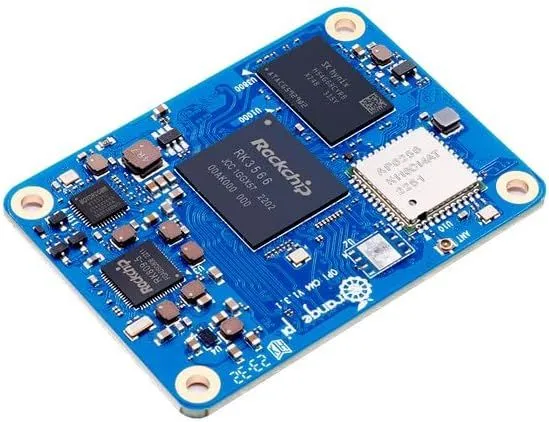
At the time of writing there’s already a newer board out, the Compute Module 5, but we work with what we’ve got.
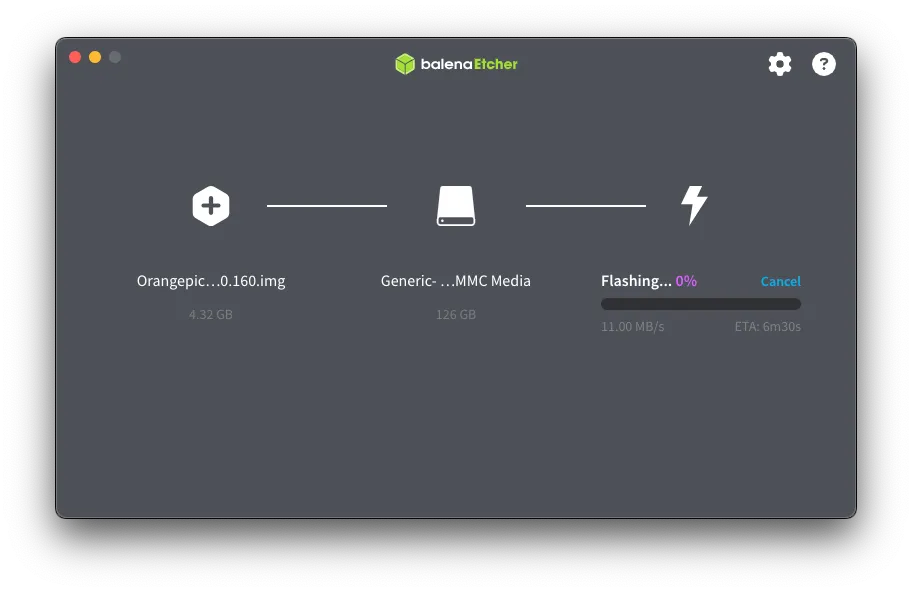
Download the distro. In my case it’s Ubuntu Server Jammy1, but there are other options to pick from.
Then flash it onto the card with balenaEtcher, or however else you prefer.
Wi-Fi
My vocabulary isn’t all that rich, so:
Fuck, why can’t Wi-Fi setup just work the way it does on a Raspberry Pi? Why is the recommended method to SSH in over Ethernet — or over a SERIAL PORT — and configure Wi-Fi from there? No, the method works, but come on, could this get any more customer-centric?
ssh root@xxx.xxx.xxx.xxx # password: orangepinmcli dev wifinmcli dev wifi connect <ssid> password <pass>
ip a # A new IP should show up to connect over Wi-Fi
After that you can unplug the Ethernet cable and connect over the new address.
First boot
First things first, the classic: update everything we’ve got:
sudo apt updatesudo apt upgradesudo reboot now && exitFrom here it’s a matter of taste: you can jump straight into installing and configuring Klipper, or you can set up a separate user, make your shell pretty, and so on. If you want a hand with the latter (and I’d highly recommend it), take a look at my cheatsheet.
apt troubles
By default the repos point at http://repo.huaweicloud.com/ubuntu-ports/.
They either fail with random errors or just hang on Waiting for headers. I never did figure out whether something was blocking them or they’re just slow on their own. The best and fastest fix at the time of writing turned out to be swapping them for http://mirrors.huaweicloud.com/ubuntu-ports/ in /etc/apt/sources.list:
deb http://mirrors.huaweicloud.com/ubuntu-ports/ jammy main restricted universe multiverse# deb http://repo.huaweicloud.com/ubuntu-ports/ jammy main restricted universe multiverse#deb-src http://repo.huaweicloud.com/ubuntu-ports/ jammy main restricted universe multiverse
deb http://mirrors.huaweicloud.com/ubuntu-ports/ jammy-security main restricted universe multiverse# deb http://repo.huaweicloud.com/ubuntu-ports/ jammy-security main restricted universe multiverse#deb-src http://repo.huaweicloud.com/ubuntu-ports/ jammy-security main restricted universe multiverse
deb http://mirrors.huaweicloud.com/ubuntu-ports/ jammy-updates main restricted universe multiverse# deb http://repo.huaweicloud.com/ubuntu-ports/ jammy-updates main restricted universe multiverse#deb-src http://repo.huaweicloud.com/ubuntu-ports/ jammy-updates main restricted universe multiverse
deb http://mirrors.huaweicloud.com/ubuntu-ports/ jammy-backports main restricted universe multiverse# deb http://repo.huaweicloud.com/ubuntu-ports/ jammy-backports main restricted universe multiverse#deb-src http://repo.huaweicloud.com/ubuntu-ports/ jammy-backports main restricted universe multiverse
BTT Manta M8P V2
GitHub. That’s also where you’ll find the guide, the pinout, and even a 3D model.
KIAUH
I’d suggest installing everything with KIAUH:
cd ~ && git clone https://github.com/dw-0/kiauh.git./kiauh/kiauh.shFrom there it’s all numbers: type the right one at the right moment and it installs. Here’s what installing Moonraker looks like, for example:

And here’s Fluidd:

It only looks scary — all you have to do is type the right number or letter. KIAUH does the rest.
In my case I install:
-
Klipper itself
-
Moonraker
-
Fluidd (with its config)
-
KlipperScreen
-
Crowsnest
At that point you have a more or less working web UI you can use to configure your Voron (or whatever it is you decided to build?).
klipper-backup
Next up, a project I’m really fond of: klipper-backup. Handy for sharing your config with someone, or — as in my case — for resurrecting a broken Klipper.
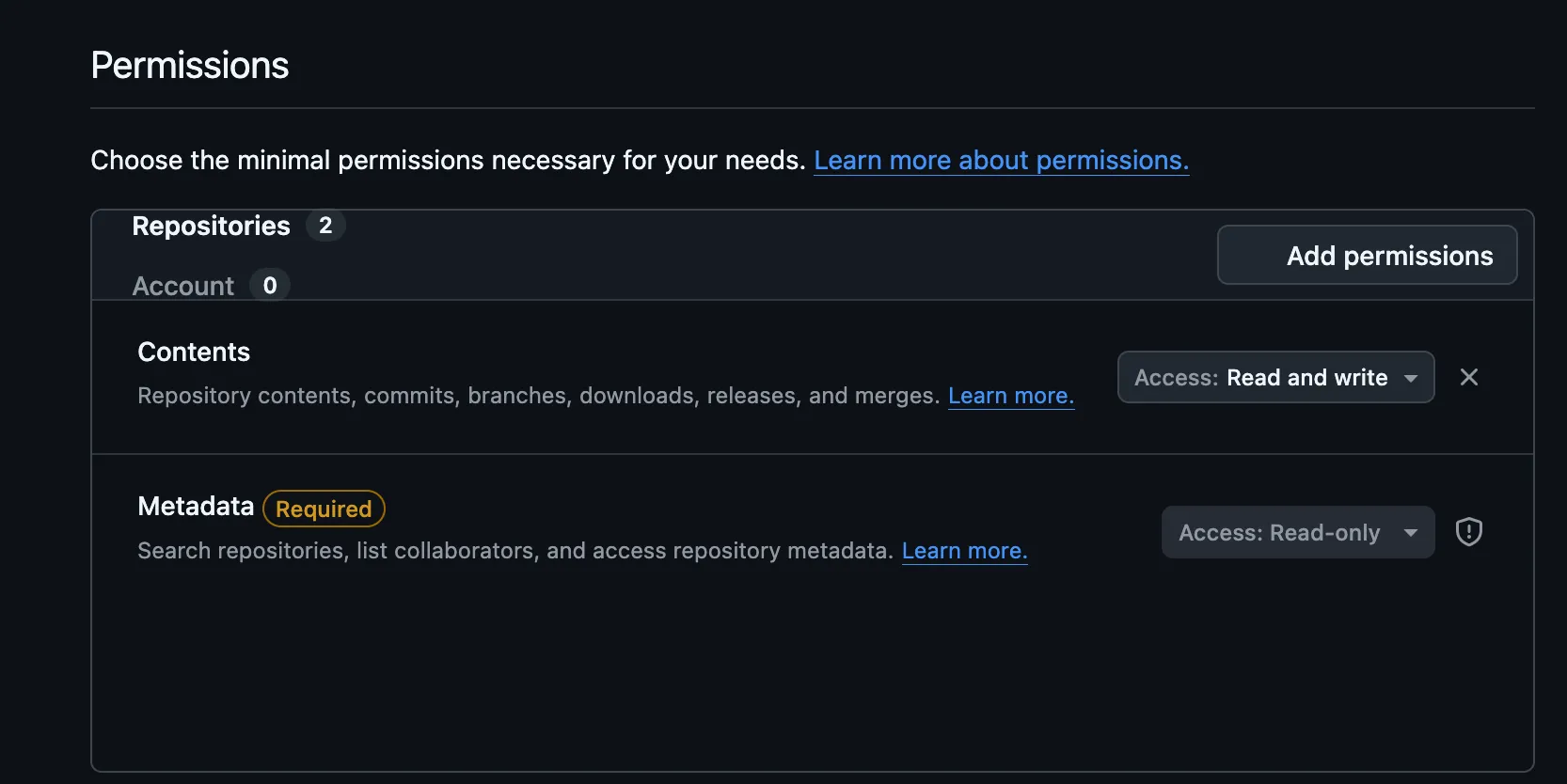
curl -fsSL get.klipperbackup.xyz | bash~/klipper-backup/install.shSo you don’t have to dig through the docs ten times over, here are the permissions to grant the PAT (Personal Access Token) when you create it on GitHub:
Moonraker Telegram Bot
This thing is absolutely OP. I’ve lost count of how many prints I’ve started remotely this way, or stopped because something went sideways mid-print. You can install it through KIAUH, under Extensions.
Cartographer 3D
I moved from the stock probe to a Cartographer (a Beacon alternative) a long time ago, purely because of how fast it builds a mesh. To set it up, install the dependencies:
curl -s -L https://raw.githubusercontent.com/Cartographer3D/cartographer3d-plugin/refs/heads/main/scripts/install.sh | bash -s -- --klipper ~/klipper --klippy-env ~/klippy-env
cd ~git clone https://github.com/Cartographer3D/cartographer_firmware.git
CANBus
A wonderful thing, right up until you have to configure it. God, the nights I’ve burned getting all of this working again, hunting for the secret combination of parameters you’re supposed to set… And here I am once more. Let’s go!
Install katapult:
git clone https://github.com/Arksine/katapultThen follow esoterical’s guide:
sudo systemctl enable systemd-networkdsudo systemctl start systemd-networkdsudo systemctl disable systemd-networkd-wait-online.serviceecho -e 'SUBSYSTEM=="net", ACTION=="change|add", KERNEL=="can*" ATTR{tx_queue_len}="128"' | sudo tee /etc/udev/rules.d/10-can.rules > /dev/nullecho -e "[Match]\nName=can*\n\n[CAN]\nBitRate=1M\n\n[Link]\nRequiredForOnline=no" | sudo tee /etc/systemd/network/25-can.network > /dev/nullsudo reboot nowFrom there just follow the guide: flash the right firmware to get CANBus working.
So now what
While I was fixing all of this, I got impatient and stupidly decided not to cut the power — and my SB2209 released the magic smoke. So for today (and realistically for an indefinite while) this guide stays exactly as it is.
Take care of yourself and your loved ones!
Footnotes
-
Seriously, why is everything hosted on Google Drive? Why not GitHub? Why not just some random file host? I don’t know, it just looks super unprofessional to me. ↩